> For AI agents: the complete documentation index is available at https://docs.halo.run/llms.txt, the full documentation bundle is available at https://docs.halo.run/llms-full.txt.

# 认证页面

Halo 2.20 重构了登录、注册等页面，现在支持通过主题自定义认证相关的页面。

考虑到登录、注册页面的复杂性，我们通常建议仅自定义页面样式，或者根据系统中提供的代码片段自行组合，如果要完全自行实现这些页面，请务必进行完整的流程测试，这**可能因为代码逻辑错误导致无法登录**。

这篇文档只会讲解自定义登录、注册等页面的原理，以及一些自定义的场景，**建议在进行代码编写的时候结合系统自带的模板源码**，源码位置：[application/src/main/resources/templates](https://github.com/halo-dev/halo/tree/58fbb339d49511e221ec760478490e1c880f7d2a/application/src/main/resources/templates)

## 原理讲解

要实现自定义登录、注册等模板，只需要在主题的 `templates` 目录中新建与 Halo 源码中 `application/src/main/resources/templates` 同名的模板文件即可。下面列出认证流程相关的 HTML 模板；国际化资源等其他文件请以源码目录为准：

```tree
├── challenges
│   └── two-factor
│       ├── totp.html                           两步验证页面
├── gateway_fragments
│   ├── common.html                             通用的模板片段
│   ├── complete_profile.html                   完善个人资料的模板片段
│   ├── input.html                              和输入框有关的模板片段
│   ├── layout.html                             通用的布局模板
│   ├── login.html                              登录相关的模板片段
│   ├── logout.html                             退出登录相关的模板片段
│   ├── oauth2_select.html                      OAuth2 登录方式选择的模板片段
│   ├── password_reset_email_reset.html         重置密码相关的模板片段
│   ├── password_reset_email_send.html          发送重置密码邮件相关的模板片段
│   ├── signup.html                             注册相关的模板片段
│   ├── totp.html                               两步验证相关的模板片段
├── password-reset
│   └── email
│       ├── reset.html                          密码重置页面
│       ├── send.html                           发送重置密码邮件页面
├── complete_profile.html                       完善个人资料页面
├── login.html                                  登录页面
├── login_email-code.html                       邮箱验证码登录页面
├── login_local.html                            本地登录方式的表单模板
├── login_oauth2_select.html                    OAuth2 登录方式选择页面
├── logout.html                                 退出登录页面
├── setup.html                                  系统初始化页面
├── signup.html                                 注册页面
```

假设我们要在主题覆盖登录页面（login.html），那么只需要在主题的 templates 目录中新建一个 `login.html` 即可，意味着只要主题提供上方的目录以及对应的模板文件，那么就会优先使用主题的模板。

## 自定义场景

### 自定义布局（推荐）

覆盖默认的布局页面，以实现和主题融合。

Halo 系统自带的布局模板为 `gateway_fragments/layout.html`，所以我们在主题的 `templates` 目录中新建一个相同路径的模板即可，下面我们以 Halo 默认主题 [Earth](https://github.com/halo-dev/theme-earth) 为例：

```html {2,25-31,33-35,41} title="templates/gateway_fragments/layout.html"
<!doctype html>
<html th:lang="${#locale.toLanguageTag}" th:fragment="layout (title,head,body)">
  <head>
    <meta charset="UTF-8" />
    <meta http-equiv="X-UA-Compatible" content="IE=edge" />
    <meta
      name="viewport"
      content="width=device-width, initial-scale=1, maximum-scale=2"
    />
    <title th:text="${title}"></title>
    <link
      rel="stylesheet"
      th:href="@{/assets/dist/style.css?v={version}(version=${theme.spec.version})}"
    />
    <script
      th:src="@{/assets/dist/main.iife.js?v={version}(version=${theme.spec.version})}"
    ></script>
    <th:block th:if="${head != null}">
      <th:block th:replace="${head}" />
    </th:block>
    <script>
      main.initColorScheme("[[${theme.config.style.color_scheme}]]",[[${theme.config.style.enable_change_color_scheme}]])
    </script>

    <link
      rel="preload"
      href="/images/wordmark.svg"
      as="image"
      type="image/svg+xml"
    />
    <link rel="preload" href="/images/logo.png" as="image" type="image/png" />

    <th:block
      th:replace="~{gateway_fragments/common::basicStaticResources}"
    ></th:block>
  </head>
  <body class="bg-slate-50 dark:bg-slate-900">
    <th:block th:replace="~{modules/header}" />
    <section class="mx-auto mt-6 flex max-w-7xl gap-6 px-4 lg:px-6">
      <div class="z-0 min-w-0 flex-1 shrink">
        <th:block th:replace="${body}" />
      </div>
    </section>
    <th:block th:replace="~{modules/footer}" />
  </body>
</html>
```

需要注意：

1. `th:fragment` 必须为 `layout (title,head,body)`
2. 必须引入 `gateway_fragments/common::basicStaticResources`，其中包含基本样式和逻辑脚本

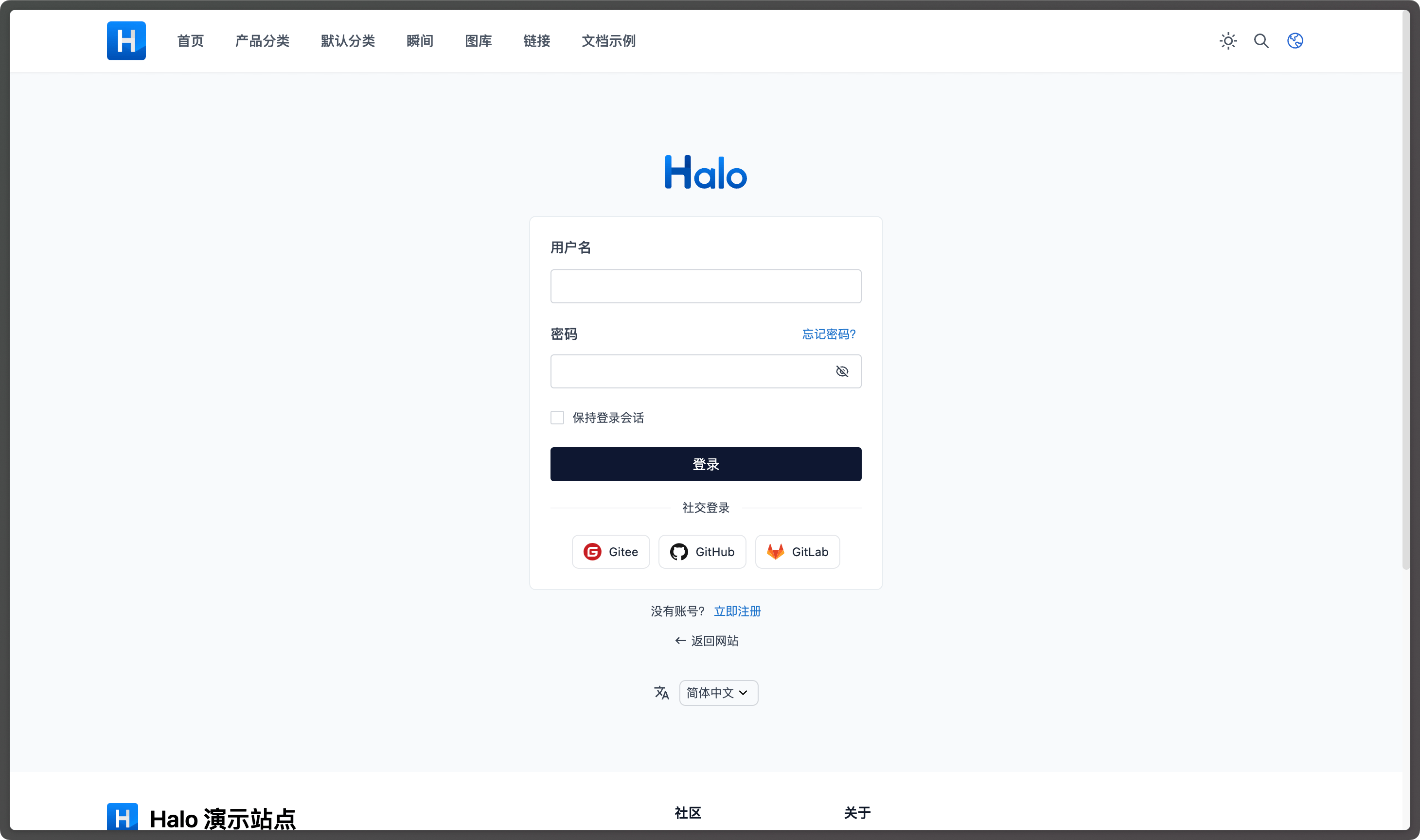
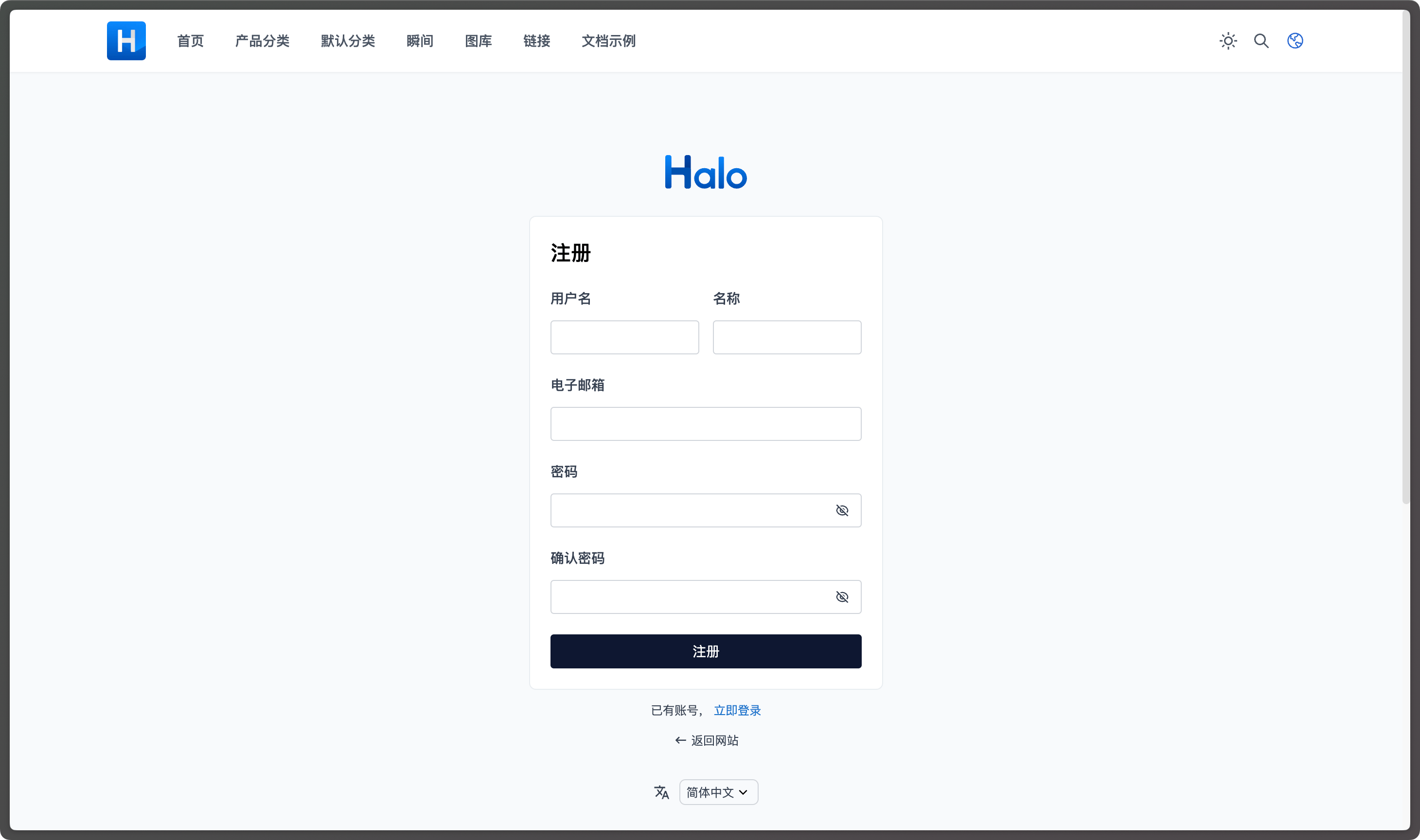
以下是实现效果：

![Custom login layout](/img/developer-guide/theme/custom-login-layout.png)

![Custom signup layout](/img/developer-guide/theme/custom-signup-layout.png)

### 自定义样式

使用自带的模板和逻辑，但完全由主题编写样式，这种场景适用于需要登录、注册页面完全和主题样式一致的场景。

因为 Halo 系统中的模板是在 `gateway_fragments/layout.html` 中引入样式文件的，所以我们仍然覆盖这个文件即可，以下是示例：

```html {2,24-28,30-33,36} title="templates/gateway_fragments/layout.html"
<!doctype html>
<html th:lang="${#locale.toLanguageTag}" th:fragment="layout (title,head,body)">
  <head>
    <meta charset="UTF-8" />
    <meta http-equiv="X-UA-Compatible" content="IE=edge" />
    <meta
      name="viewport"
      content="width=device-width, initial-scale=1, maximum-scale=2"
    />
    <title th:text="${title}"></title>

    <th:block th:if="${head != null}">
      <th:block th:replace="${head}" />
    </th:block>

    <link
      rel="preload"
      href="/images/wordmark.svg"
      as="image"
      type="image/svg+xml"
    />
    <link rel="preload" href="/images/logo.png" as="image" type="image/png" />

    <!-- 主题自行编写的样式文件 -->
    <link
      rel="stylesheet"
      th:href="@{/assets/dist/style.css?v={version}(version=${theme.spec.version})}"
    />

    <!-- 只引入脚本文件，通常 JS 脚本无需自行编写 -->
    <th:block
      th:replace="~{gateway_fragments/common::basicScriptResources}"
    ></th:block>
  </head>
  <body>
    <th:block th:replace="${body}" />
  </body>
</html>
```

这样就会只渲染页面结构，但是不包含任何样式，开发者可以自行通过浏览器审查元素，找到对应的 CSS 选择器，然后自行编写样式文件。Halo 系统自带的样式文件为 [application/src/main/resources/static/styles/main.css](https://github.com/halo-dev/halo/blob/58fbb339d49511e221ec760478490e1c880f7d2a/application/src/main/resources/static/styles/main.css)。